Logging in to Docker Repository
Log in to TUKE Harbor using your TUKE ID.
-
Web UI
Manage projects via web interface.
-
Docker CLI
Push and pull via command line.
-
Robot Accounts
For automation and CI/CD.
-
TUKE ID
Same login as other services.
Web interface
Open Harbor
Log in
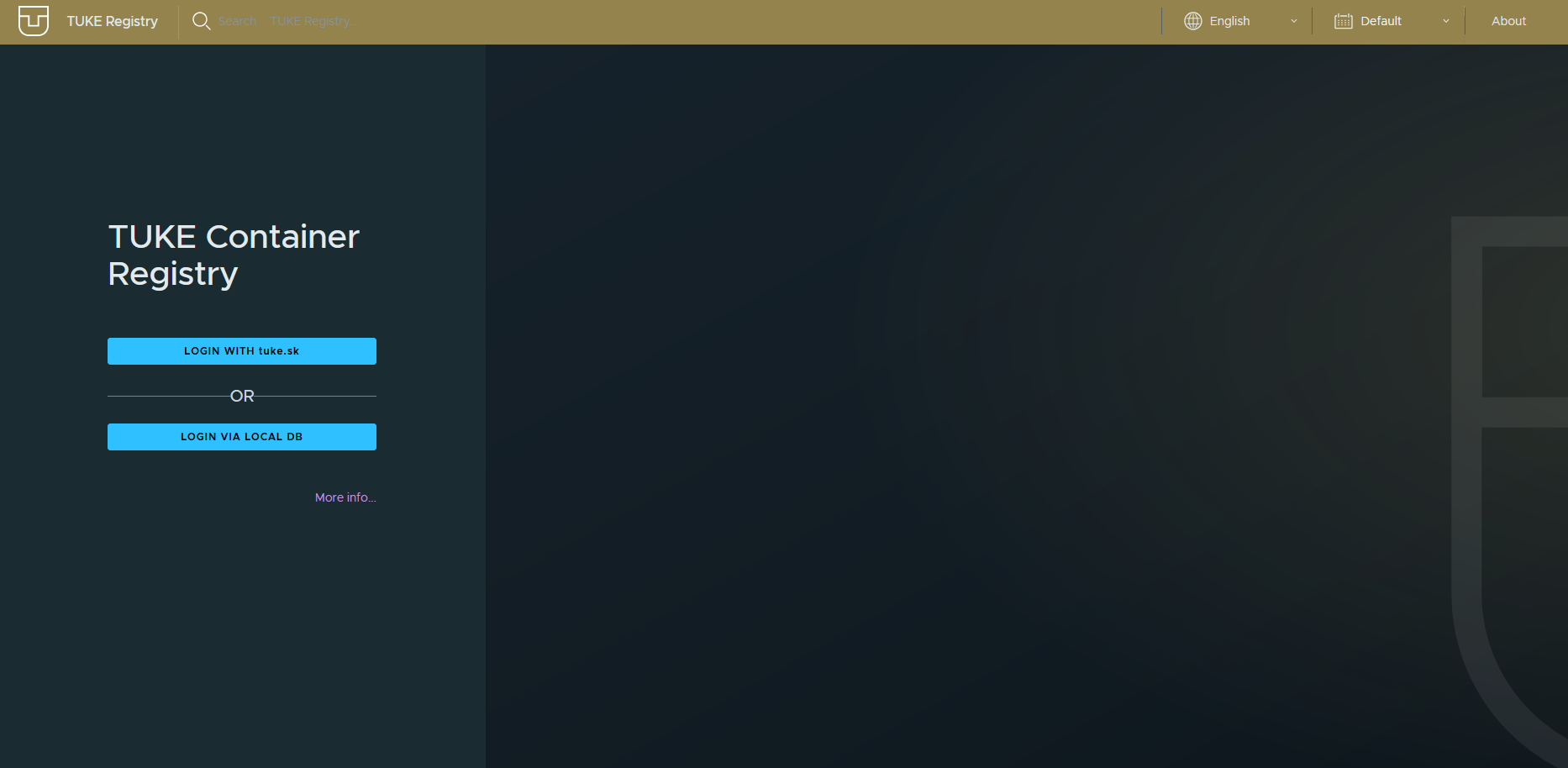
There are two options:
| Button | When to use it |
|---|---|
| LOGIN WITH tuke.sk | The usual way, signs you in with your university account |
| LOGIN VIA LOCAL DB | A local account created directly in the registry |
What you can do in Harbor UI
- View your projects
- Create new projects
- Manage access permissions
- Check vulnerability scans
- View download history
Docker CLI
Basic login
After running, enter your login credentials:
Successful login
After successful login, the message will appear: Login Succeeded
Login with parameters
Security
Do not use the -p parameter, because the password will be stored in shell history.
Verify login
Logout
Robot Accounts (CI/CD)
For automated systems, use robot accounts.
Creating robot account
- Log in to Harbor web UI
- Go to your project
- In the Robot Accounts section, click New Robot Account
- Set the name and permissions
- Save the generated token
Usage
CI/CD integration
Robot accounts are ideal for GitHub Actions, GitLab CI, Jenkins.
Common problems
unauthorized: authentication required
Check:
- Correct TUKE ID
- Current password
- Account is not blocked
SSL/TLS certificate
sudo mkdir -p /etc/docker/certs.d/repository.cloud.tuke.sk
openssl s_client -showcerts -connect repository.cloud.tuke.sk:443 \
  </dev/null 2>/dev/null | openssl x509 -outform PEM \
  | sudo tee /etc/docker/certs.d/repository.cloud.tuke.sk/ca.crt > /dev/null
sudo systemctl restart docker
The > redirect runs as your own user, not under sudo, which is why sudo tee is required.
Access outside TUKE
Use VPN connection to TUKE network.