Security and scanning
The registry checks uploaded images for known vulnerabilities and produces a list of their components.
-
Automatic scan
Every image is checked as soon as it is pushed.
-
SBOM
A list of image components is generated automatically.
-
Trivy
A scanner by Aqua Security running inside the registry.
-
Signatures
Deployment can be limited to verified images only.
Scanner
The Scanner tab shows which scanner the project uses.
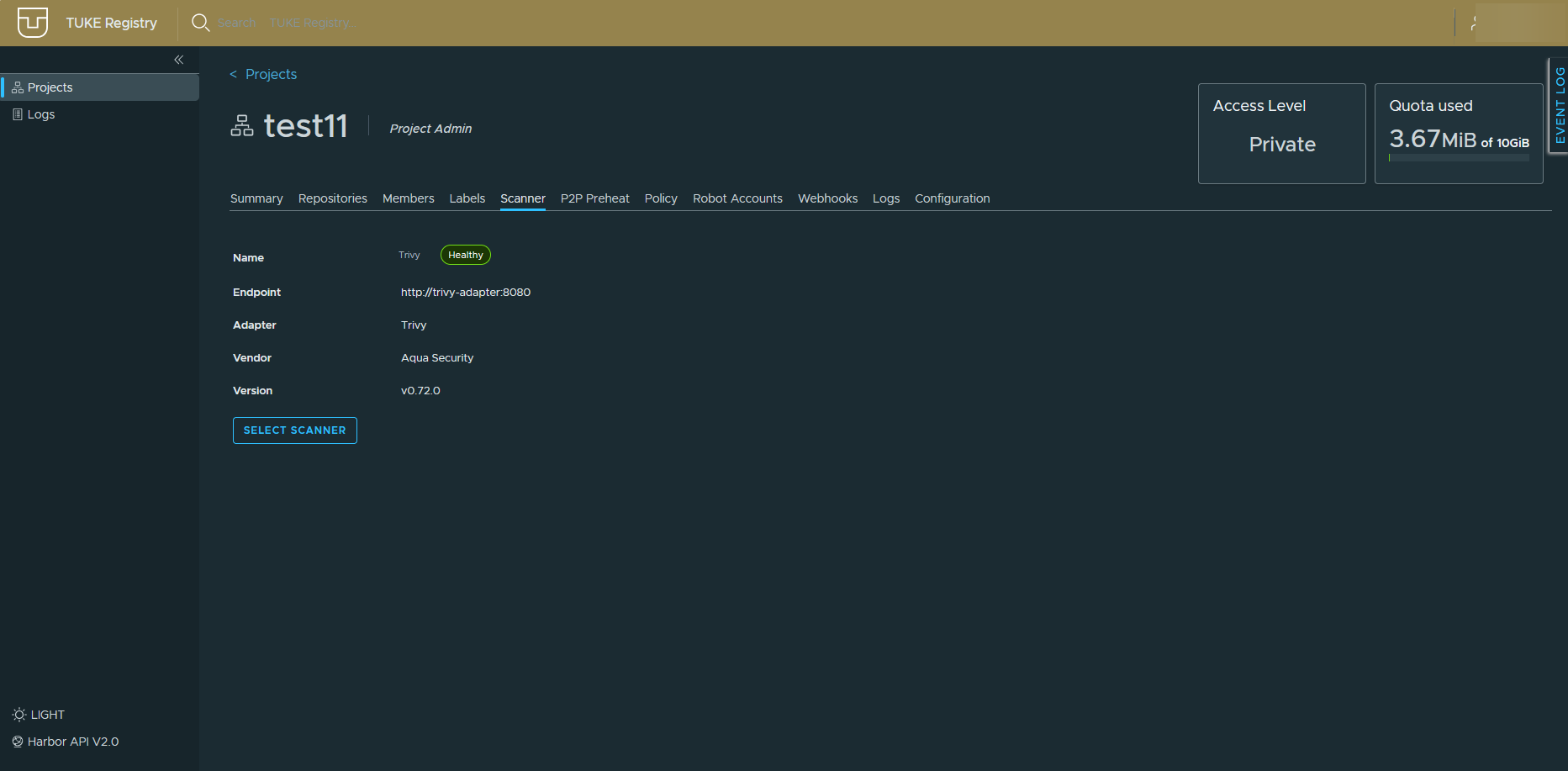
The default is Trivy in the Healthy state. SELECT SCANNER switches to another configured scanner if one is available.
Vulnerabilities
Scan results are on the Vulnerabilities tab of an artifact.
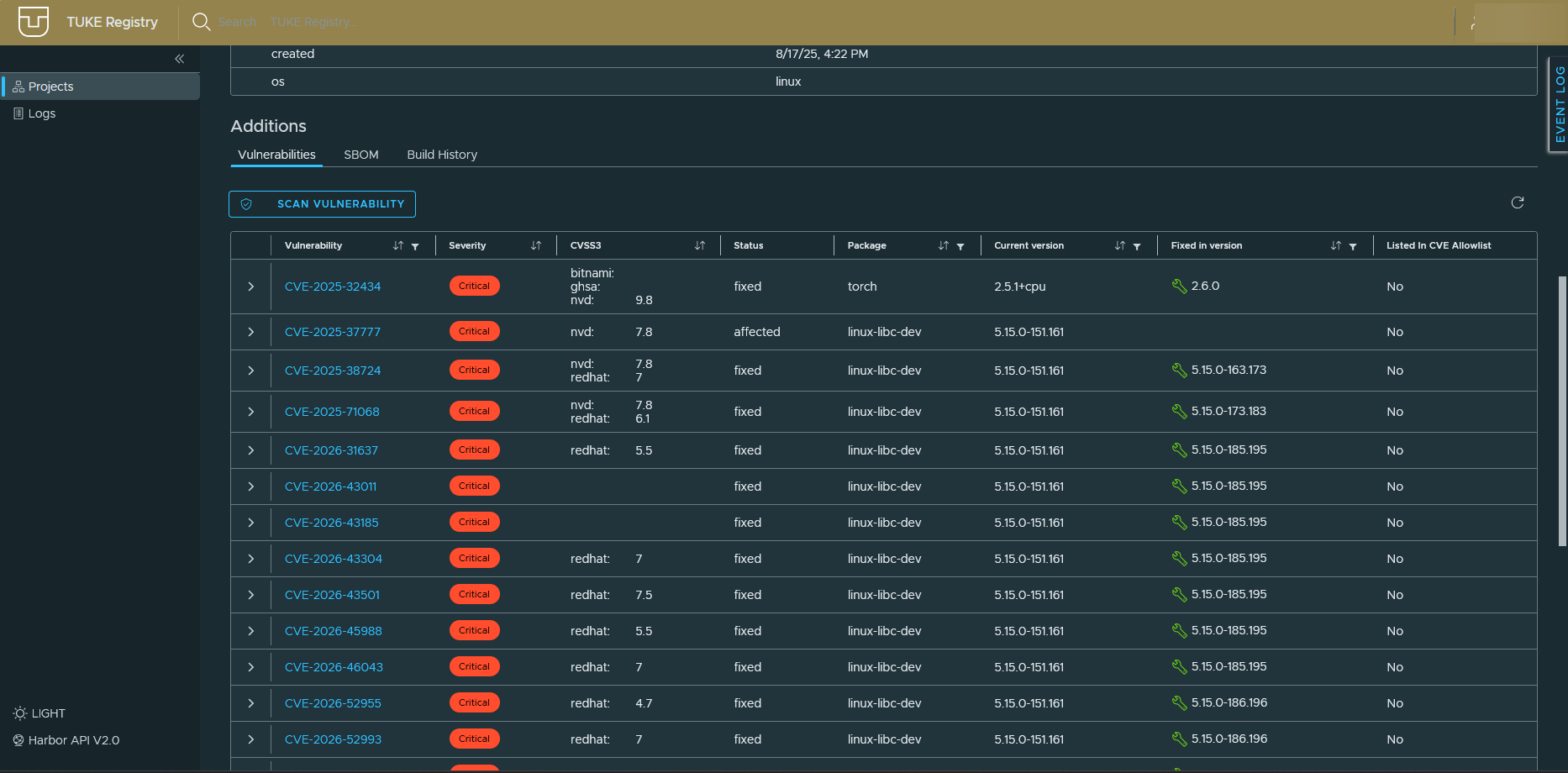
| Column | Meaning |
|---|---|
| CVE ID | Vulnerability identifier |
| Severity | From Low to Critical |
| CVSS3 | Score from individual sources (nvd, redhat, ghsa) |
| Status | fixed means a fix exists, affected means not yet |
| Package | The affected package and its version |
| Fixed in | The version that resolves the issue |
| Allowlisted | Whether the CVE is on the ignore list |
How to get rid of vulnerabilities
Most findings come from the base image, not from your code. Update FROM
to a newer version, or move to a smaller base (-slim, alpine) that
contains fewer packages.
You can rerun the scan any time with SCAN VULNERABILITY.
SBOM
An SBOM (Software Bill of Materials) is a machine-readable list of everything the image contains. It helps with audits and with checking whether a newly published vulnerability affects you.
In this project it is generated automatically on every push. Download it from the artifact detail under the SBOM tab with DOWNLOAD SBOM.
Project security settings
The Configuration tab of a project.
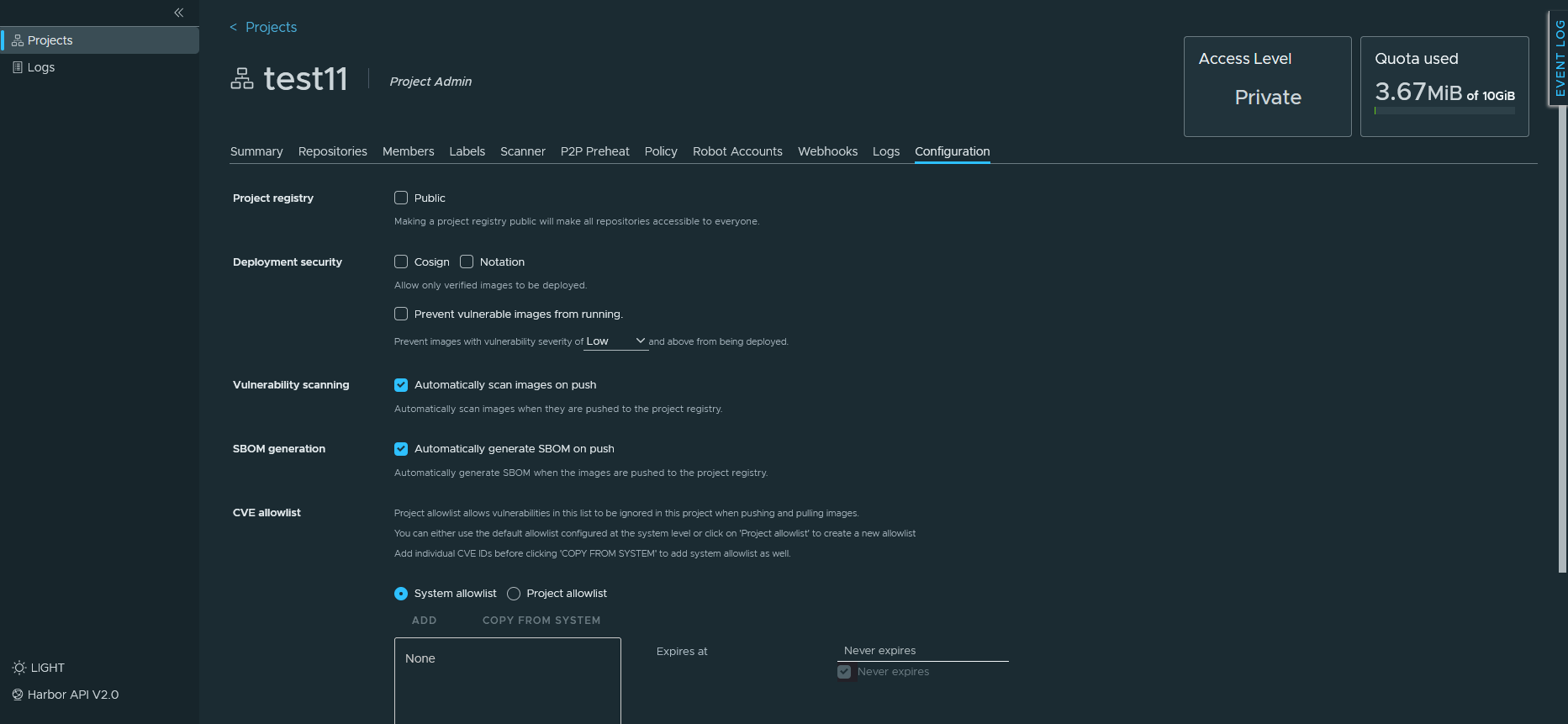
Public project
Project registry → Public makes all repositories in the project accessible to anyone without signing in. Leave it off for coursework and staff projects.
Deployment security
| Option | What it does |
|---|---|
| Cosign / Notation | Allows deploying only images with a valid signature |
| Prevent vulnerable images from running | Blocks images with a vulnerability at or above the chosen severity |
Blocking can stop deployments
If you block from Low upwards, almost no image gets through. Starting at High or Critical is more sensible.
Automatic checks
| Option | Default |
|---|---|
| Automatically scan images on push | Enabled |
| Automatically generate SBOM on push | Enabled |
CVE allowlist
A list of vulnerabilities ignored during checks. You can use the System allowlist set by the administrator, or create your own Project allowlist. A project allowlist can carry an expiry date so the exception does not last forever.
Use the allowlist sparingly
An exception makes sense when a vulnerability demonstrably does not affect you. Not as a way to make red warnings disappear.
Recommendations
Security basics
- Update base images, most findings originate there
- Never store passwords or tokens inside an image
- Avoid
latestin production; refer to a version or a digest - Review the scan result before deployment, not after
- Use robot accounts for CI/CD, not your personal credentials