VM Request
Request your own virtual server for education, projects, research or testing.
Available systems
-
Windows
- Windows Server 2025
- Windows 11
-
Linux
- Ubuntu Server 24.04 LTS
- Ubuntu Server 26.04 LTS
- Ubuntu Desktop 24.04 LTS
- Ubuntu Desktop 26.04 LTS
250 GB Disk
Every VM is automatically allocated a 250 GB disk.
Request process
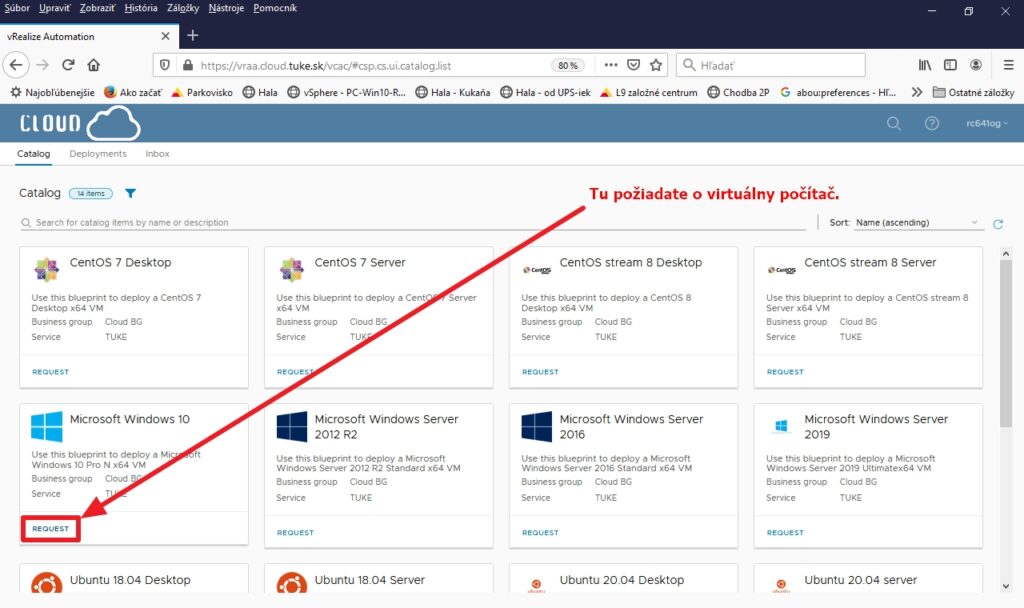
Select OS
In Cloud Portal, go to Catalog and click on desired OS.
Select parameters
Choose performance configuration (CPU/RAM).
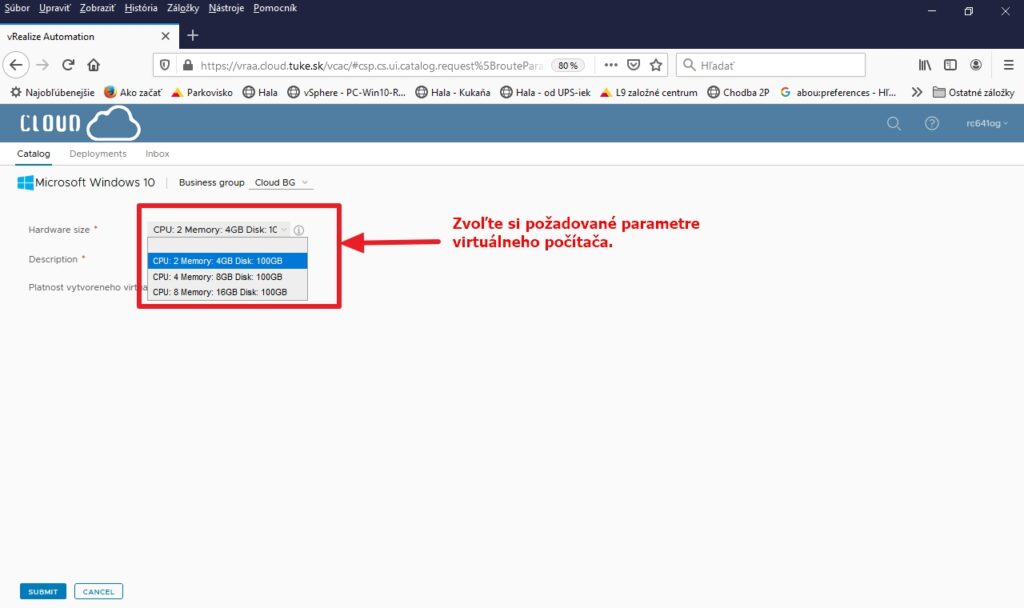
Windows Configurations:
| Edition | 2 CPU / 4GB | 4 CPU / 8GB | 8 CPU / 16GB |
|---|---|---|---|
| Windows Server 2025 | |||
| Windows 11 |
Ubuntu Configurations:
| Edition | 1 CPU / 2GB | 2 CPU / 4GB | 4 CPU / 8GB | 8 CPU / 16GB |
|---|---|---|---|---|
| Ubuntu Server 24.04 / 26.04 | ||||
| Ubuntu Desktop 24.04 / 26.04 |
VM description
Provide a brief description and click Submit.
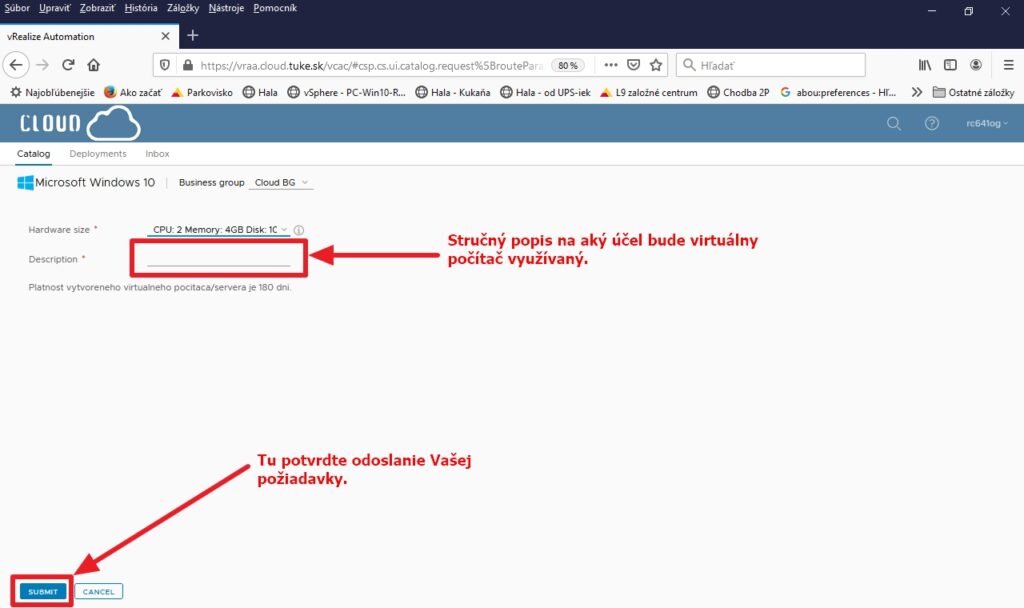
Good description examples
- "VM for course XYZ, semester project"
- "Software testing for thesis"
- "Research, data analysis in Python and TensorFlow"
Wait for approval
Track status in Deployments.
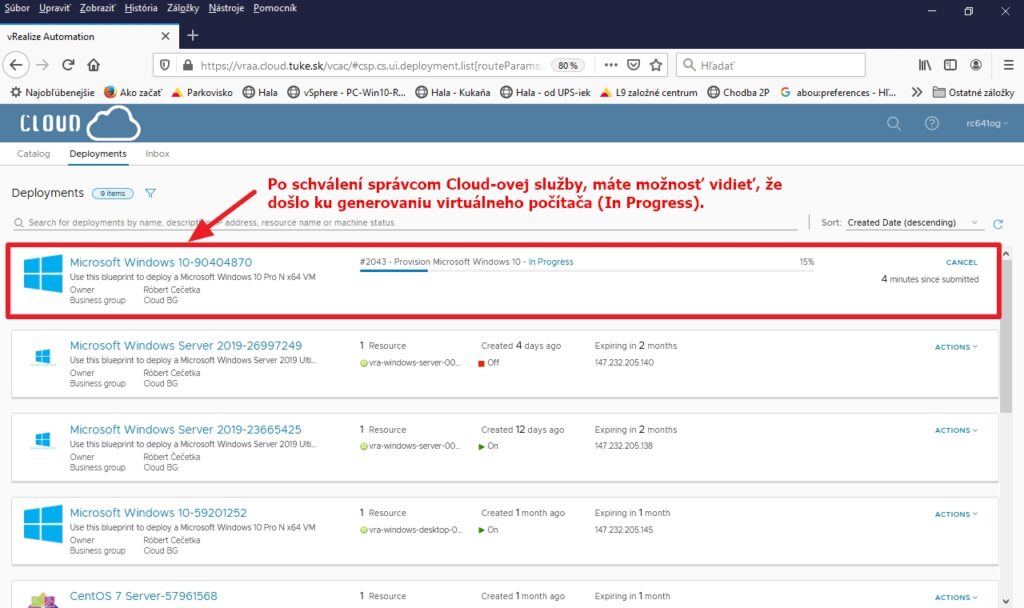
Approval
Approval happens only during business days, usually within 24 hours. Requests are not approved on weekends and holidays.
Portal emails
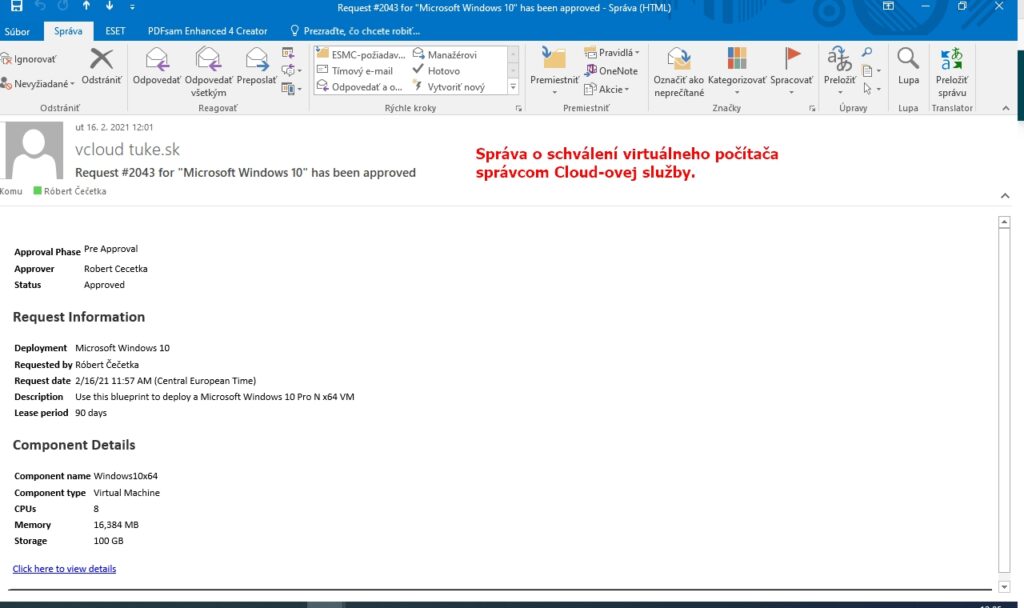
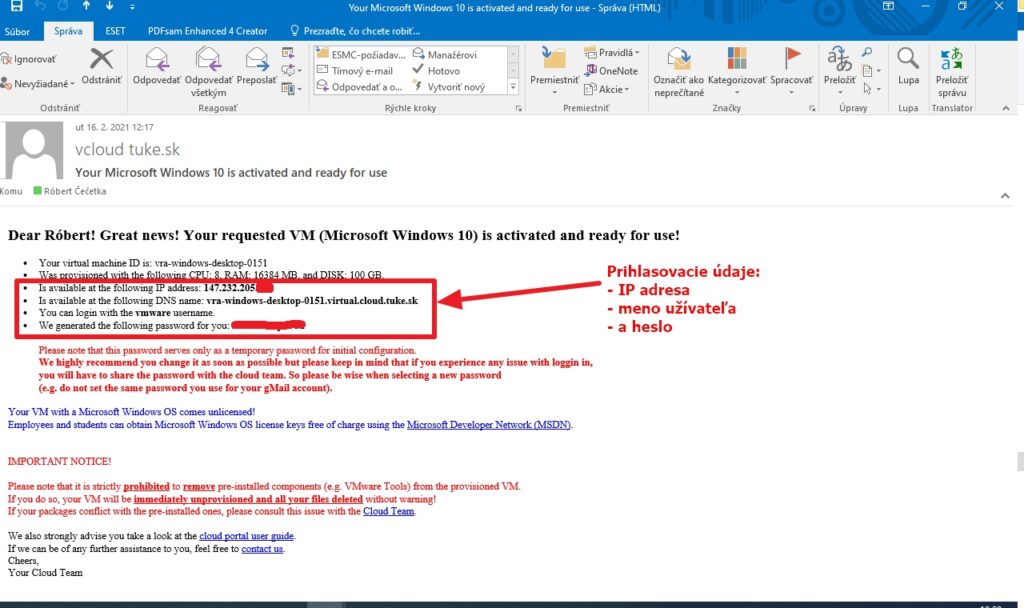
You will receive several emails:
| Content | |
|---|---|
| Request received confirmation | |
| Request approval | |
| License notice (Windows) | |
| Login credentials (DNS, IP, password) |
Connecting to VM
-
Windows
Connect via RDP (Remote Desktop).
Use DNS name from email.
-
Linux Server
Connect via SSH:
-
Linux Desktop
SSH (terminal) or RDP (graphical).
-
Web console
Straight from the Cloud Portal, without SSH or RDP.
When neither SSH nor RDP works
The Cloud Portal offers a web console to your VM. It gets you in even when the server is unreachable over the network, for example after a misconfigured firewall or network interface. It is the same access an administrator has through vSphere, exposed through the portal.
Licensing
- Windows OS
-
License is automatically set. No activation needed.
- Other Software
-
Licenses for Office, development tools and other apps must be secured by yourself.
Critical warnings
Do not uninstall VMware Tools!
Removing VMware Tools or other pre-installed components will cause:
- Immediate VM cancellation
- Irreversible data deletion
- No recovery possible
Common mistakes
Expecting immediate creation
VMs are not created automatically. Request must be approved by administrator.
Too general description
Administrator may not know what you need VM for. Specify the purpose.
Wrong login credentials
Always use credentials from the last email, not old passwords.
Connecting without VPN
VMs and portal are accessible only from TUKE network or via VPN.
Special requirements
For non-standard configurations (more CPU/RAM, special networks) contact: