Creating a Jupyter Notebook
Launch an interactive development environment directly in the TUKE Kubernetes cluster.
-
4 CPU
Up to 4 cores for computation.
-
4 GB RAM
Sufficient memory for ML models.
-
50 GB Storage
Persistent storage for projects.
-
Automatic namespace
Created on first login.
Logging in to Kubeflow
Open the portal
Visit ml.cloud.tuke.sk and log in with your TUKE login.
After logging in, your personal namespace will be automatically created.
Creating a Notebook
Open Notebooks section
In the left menu, click on Notebooks and press + New Notebook.
Fill in basic information
| Field | Value |
|---|---|
| Name | Notebook name (e.g., my-first-notebook) |
| Image | Select a pre-prepared image |
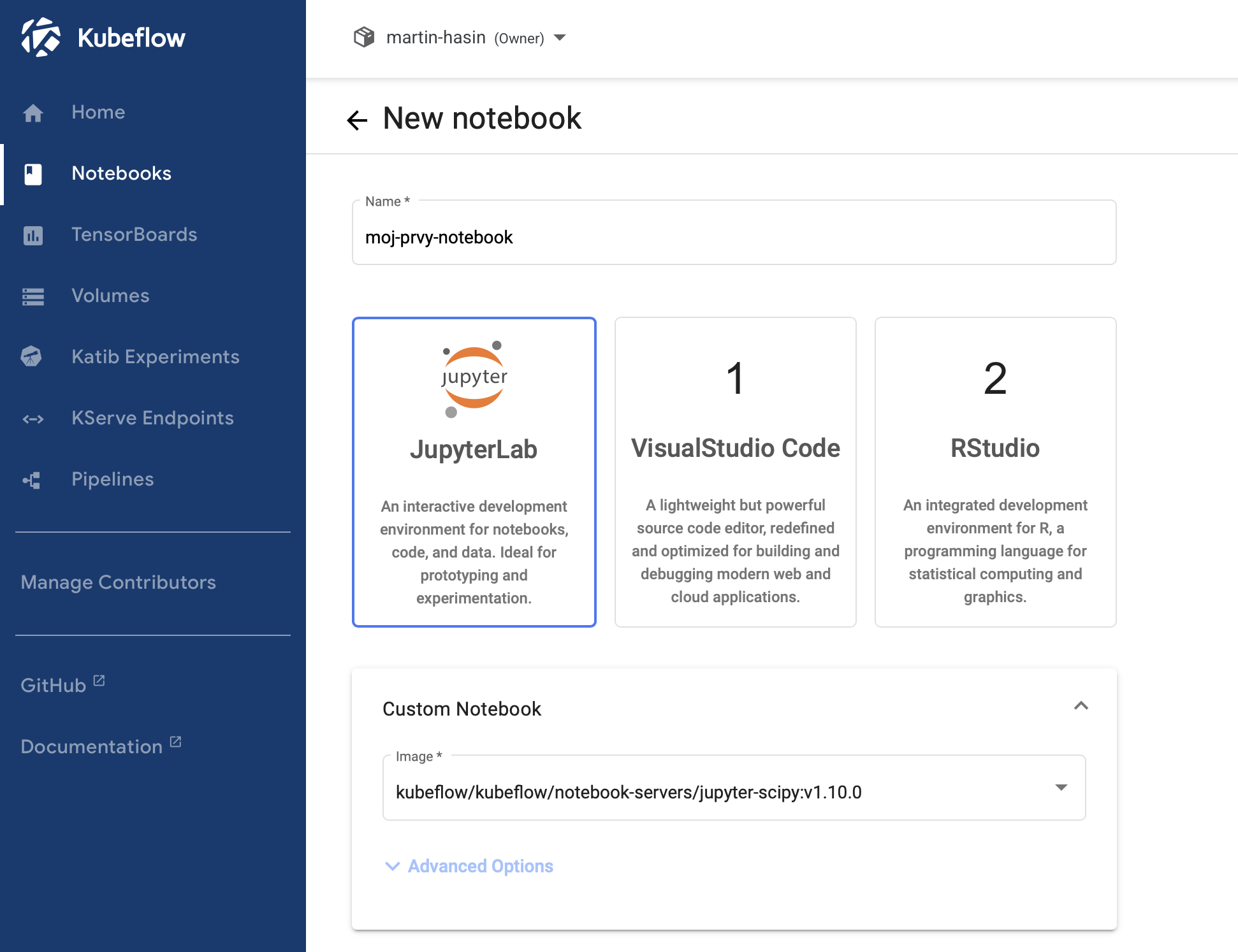
Available Images
-
:material-pytorch: jupyter-pytorch-cpu
For neural networks, NLP, CV.
-
:material-tensorflow: jupyter-tensorflow-cpu
TensorFlow/Keras models.
-
jupyter-scipy-cpu
Scientific computing, data analysis.
GPU
GPU images are currently not active.
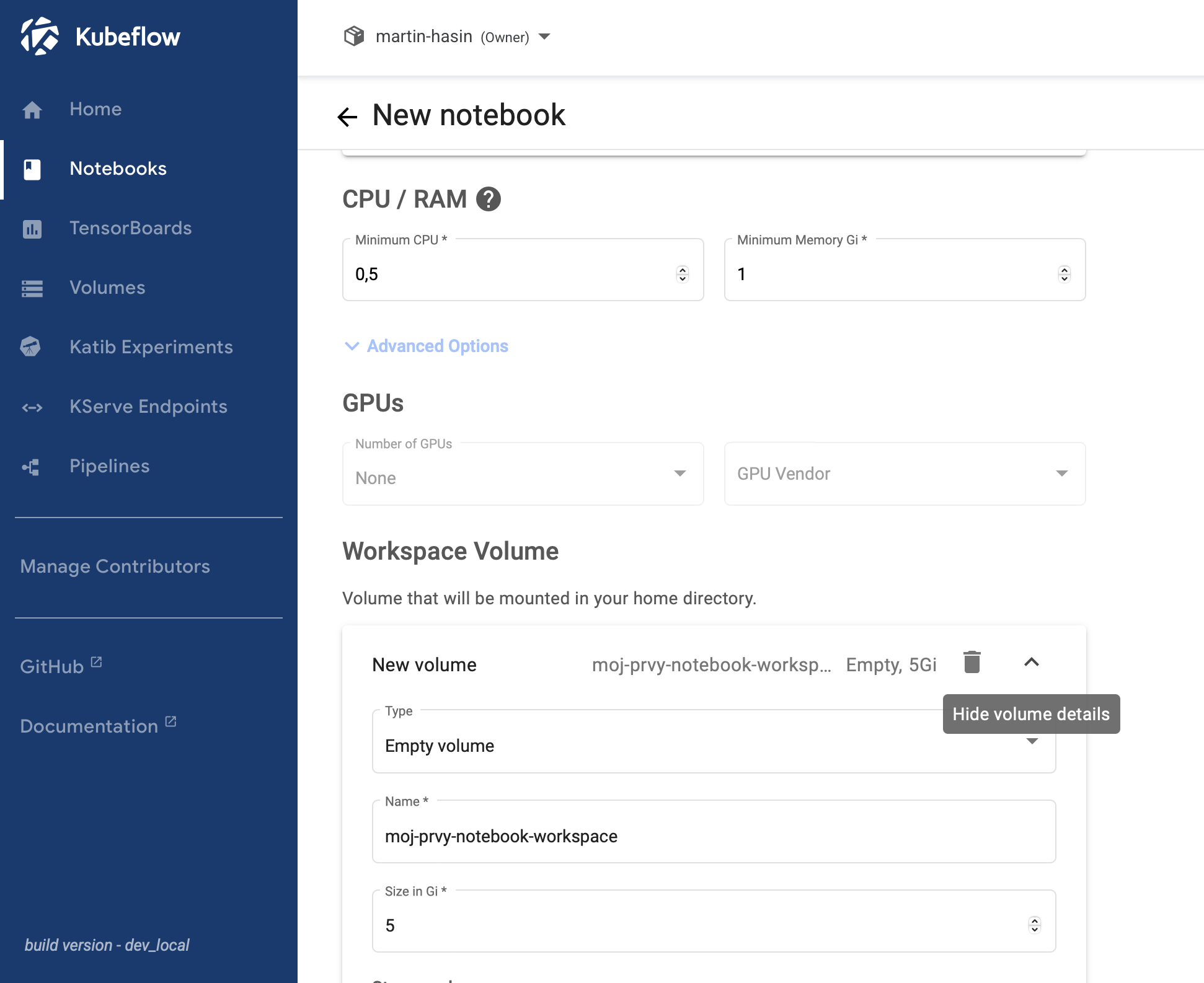
Set computational resources
| Parameter | Maximum |
|---|---|
| CPU | 4 vCPU |
| RAM | 4 GiB |
| Workspace Volume | 50 GiB |
Recommendation
Set at least 5 GiB for workspace volume.
Launch the notebook
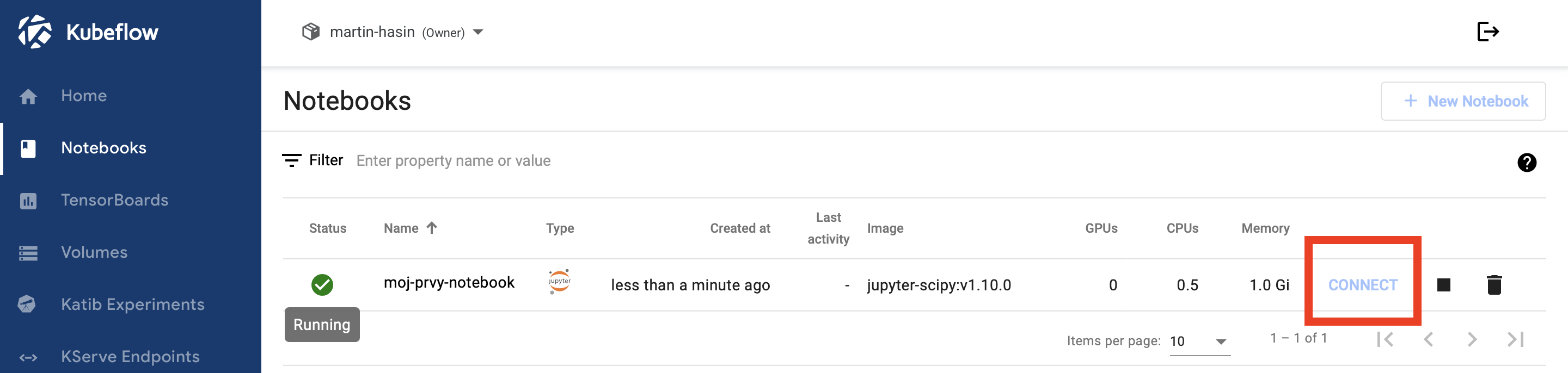
- Click Launch
- Wait for status Running
- Click Connect – JupyterLab will open
Working in JupyterLab
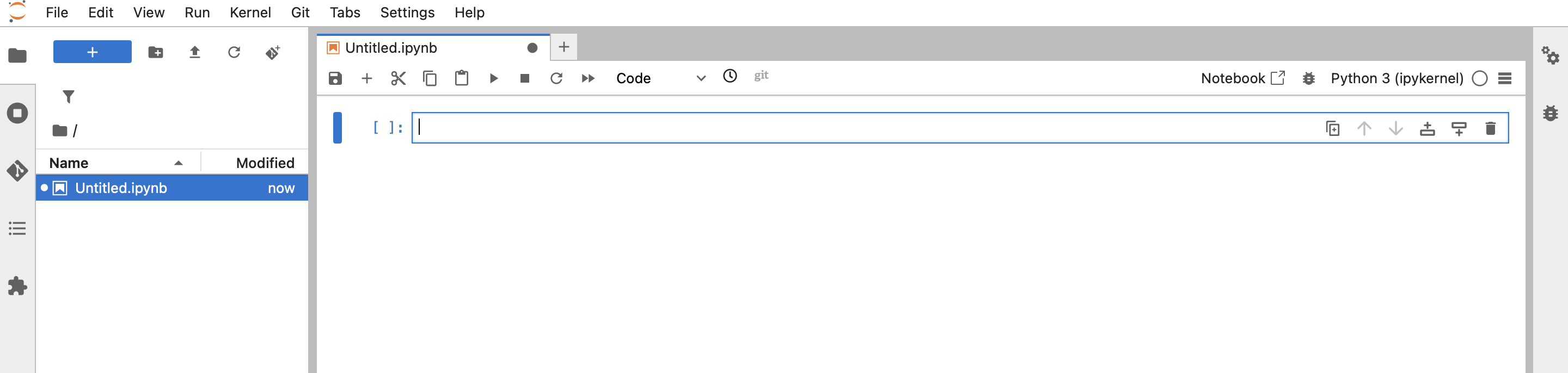
After opening JupyterLab, you can:
- Create a new notebook via New → Python 3
- Upload files via the Upload button
- Organize projects into directories
- Edit scripts, models, and datasets
Automatic saving
All changes are automatically saved to Workspace Volume.
Recommendations
Best practices
- Shut down unused notebooks – they consume computing resources
- Data remains saved even after shutting down the notebook
- Regularly clean unnecessary files (datasets, logs)
- Use Git for code versioning