VM Validity Extension
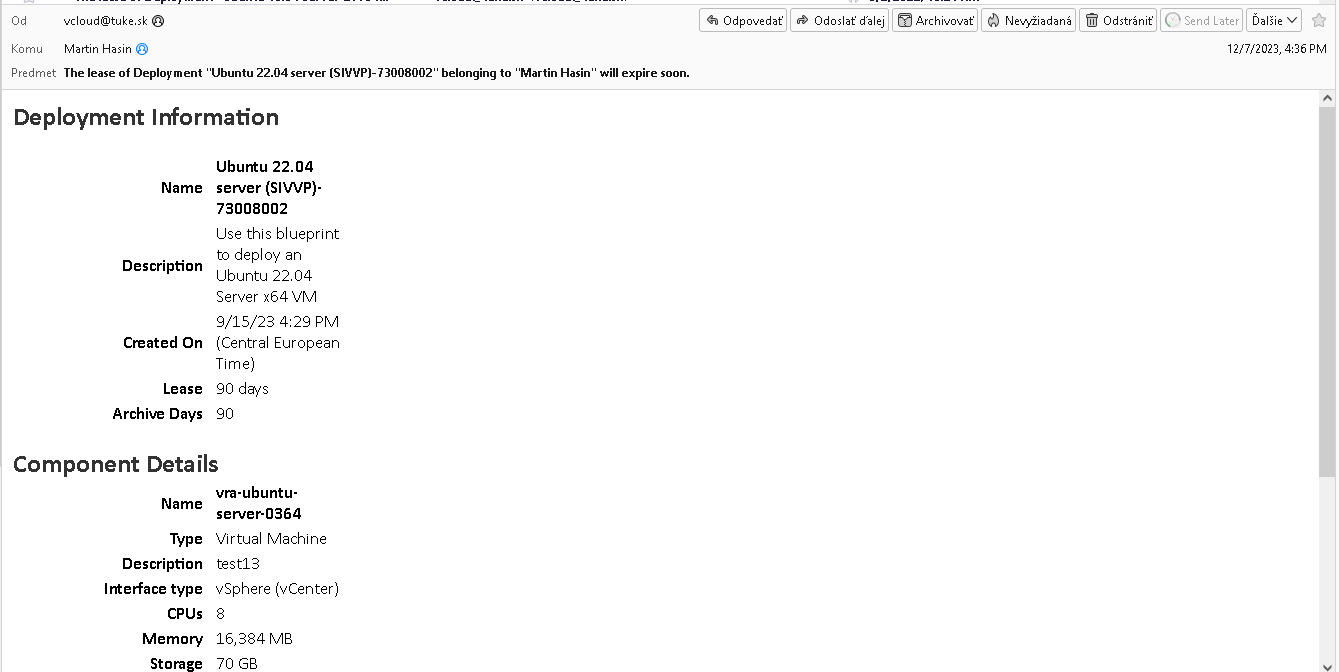
Each VM has a validity of 90 days. You'll receive an email notification before expiration.
What happens if you don't extend?
- After expiration → VM automatically shuts down
- After another 90 days → VM is permanently deleted
Extension Process
Open Deployments
Log in to Cloud Portal and go to Deployments.
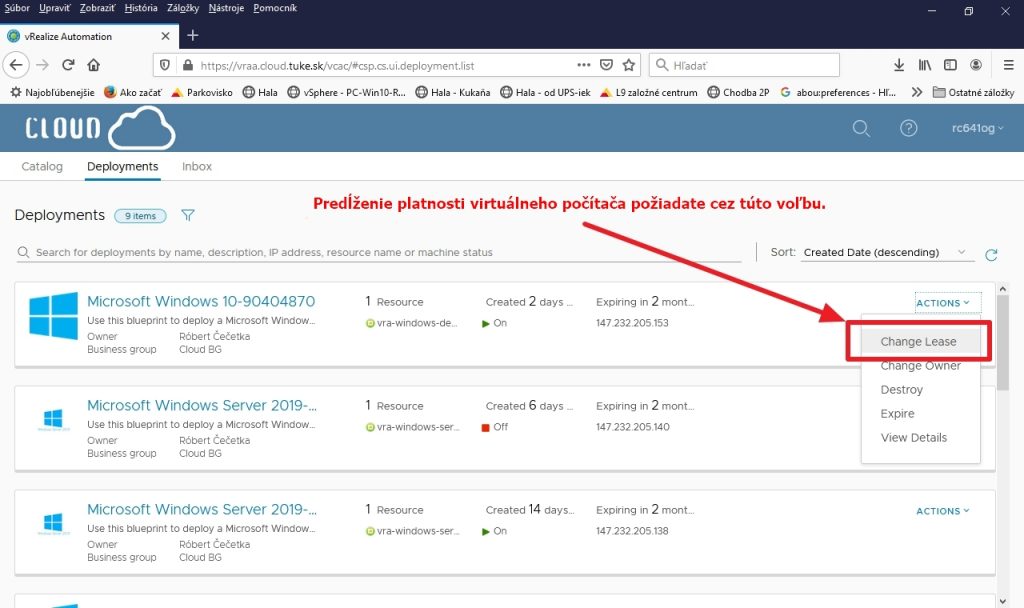
Find your VM and in Actions click on Change Lease.
Select New Date
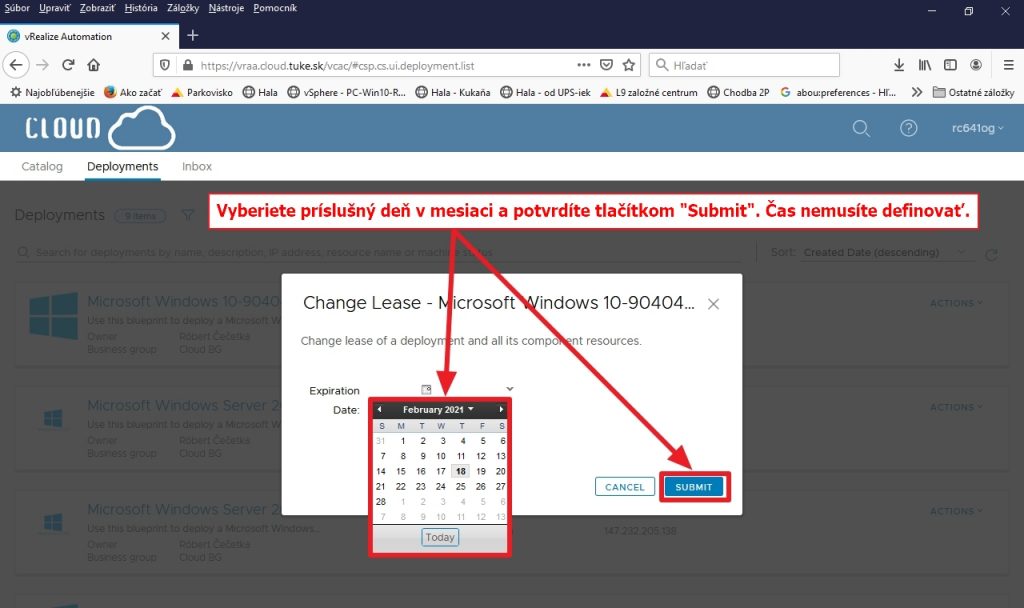
From the calendar, select the date until which you want to extend validity.
Click Submit.
Done
The new expiration date will appear in VM details.
Notification Emails
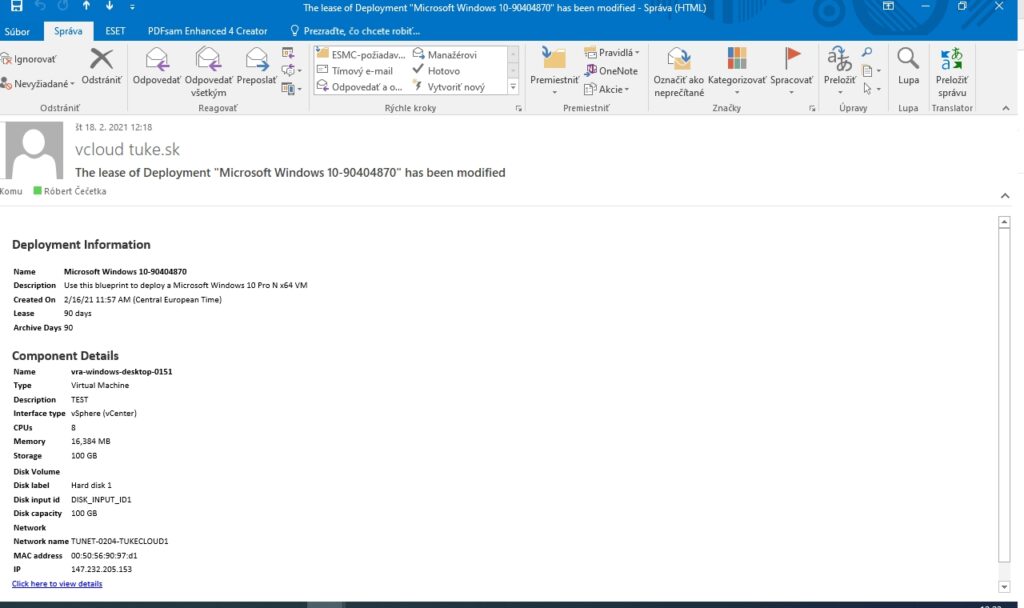
Before expiration, you'll receive an email from vcloud@tuke.sk:
Common Mistakes
Incorrect date
System rejects dates in the past or today.
Solution: Select a date at least 1 day in the future.
Clicking wrong action
Watch out for these actions:
| Action | What it does |
|---|---|
| Expire | Immediate VM termination |
| Destroy | Scheduled VM deletion |
| Change Owner | Owner change |
Always verify you're clicking Change Lease!
VM in Error state
You can extend lease even with VM shut down or in Error state.
If it doesn't work, contact support.
Incorrect domain
When logging in, always select domain ad.tuke.sk.